add vGPU to a Windows 11 or Server 2022 VM
no longer used
i no longer run vGPU on the cluster.
- create VM with CPU set to host DO NOT CHANGE THIS
- boot VM without vGPU and display set to default
- install windows 11
- install VirtIO drivers [as of 4.6.2024 do not install guest tools - this may cause repair loops]
- shutdown VM and change display to VirtIO-GPU
- Now add the vGPU pool as a PCI device
-
when creating a VM add a PCI device and add the poool as follows:
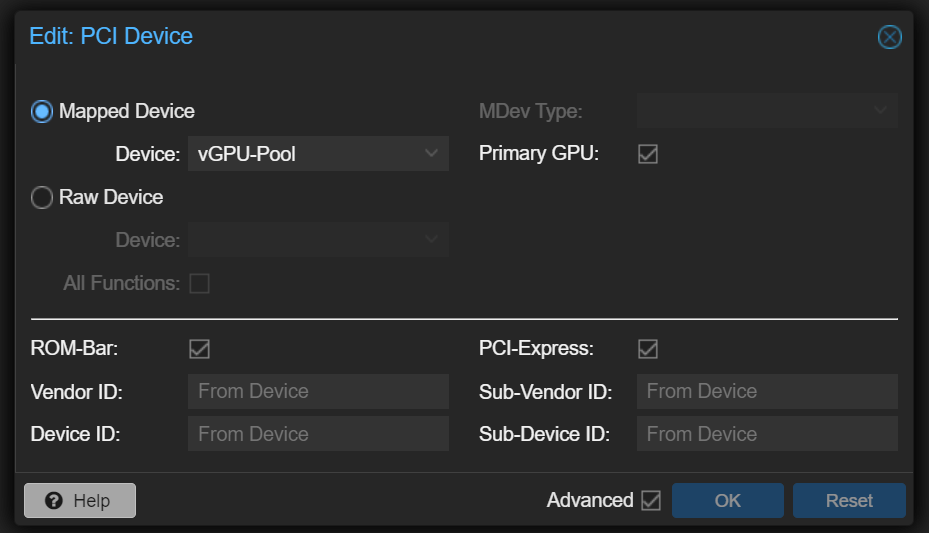
-
now boot into VM and install latest IrisXe drivers from intel
- you should now have graphics acceleration availble to apps wether you connect by webcolse VNC, SPICE or an RDP client
From @rinze24:
If you follow the guide successfully, in Device Manager you will see:
- Microsoft Basic Display Adapter - If you use Display in VM Settings
- Intel iGPU - passthrough
You have 2 options (or more) to use your iGPU. Because Windows 11 decide on its own which graphics to use.
-
Setup Remote Desktop Connection in Windows 11 and set the display to none in VM Hardware settings.
- Pro: No configuration per app, Responsive Connection.
- Con: No proxmox console.
-
Inside Windows Set which graphics preference to use per application in Display Settings -> Graphics Settings-
- Pro: Have proxmox console.
- Con: Need to configure per application / program.
If you hit automatic repair loop at any point shutdown the machine and edit its conf file in /etc/pve/qemu-server and add
args: -cpu Cooperlake,hv_relaxed,hv_spinlocks=0x1fff,hv_vapic,hv_time,+vmx
This page started as a gist: the original, with its comments